---
title: Images
description: Handle image input, integrate custom media pickers, and configure image block properties.
---
# Images
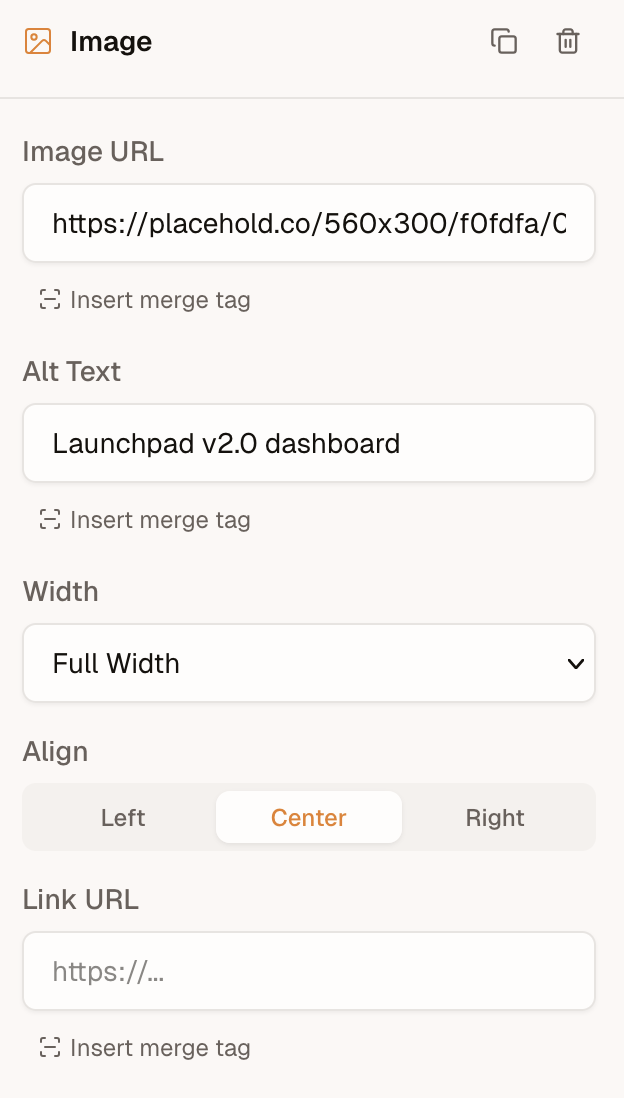
When a user adds an image block, the editor shows a text field where they can paste an image URL. The image block toolbar exposes fields for `src`, `alt`, `width`, `align`, and an optional `linkUrl`.
 ## Browse and pick
A browse button appears alongside the URL input when **either** a [`media`](/backend/media) provider **or** `onRequestMedia` is configured.
## Browse and pick
A browse button appears alongside the URL input when **either** a [`media`](/backend/media) provider **or** `onRequestMedia` is configured.
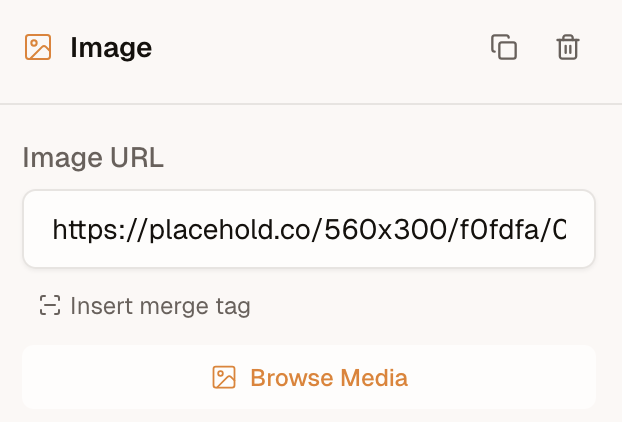 `media` opens the built-in library modal. `onRequestMedia` is a **UI override** (Bynder, Cloudinary widget, a host modal): the editor calls it instead of opening the library, and it wins when both are set. Return a `MediaResult`, or `null` if the user cancels. When `alt` is provided, the editor fills in the image's alt text.
```ts
import { init } from '@templatical/editor';
const editor = await init({
container: '#editor',
async onRequestMedia() {
// Open your own modal, file browser, or asset manager
const image = await openMyMediaModal();
if (!image) return null;
return { url: image.url, alt: image.alt };
},
});
```
A gallery of your own is the `media` key — see [Media](/backend/media).
The type signature:
```ts
interface MediaResult {
url: string;
alt?: string;
}
interface MediaRequestContext {
/** Media categories the editor is asking for (e.g. `['images']`). */
accept?: MediaCategory[];
/**
* Files dragged directly onto an image block or field. Present only for
* drag-and-drop requests; absent when the user clicks "Browse Media".
*/
files?: File[];
}
type OnRequestMedia = (context?: MediaRequestContext) => Promise;
```
## Drag and drop to upload
Users can drag an image file from their computer straight onto an image block (empty or filled), the sidebar image field, or a custom block's image field.
With `onRequestMedia`, the editor calls that handler with the dropped file in `context.files`:
```ts
const editor = await init({
container: '#editor',
async onRequestMedia(context) {
// A file was dropped — upload it and return its hosted URL.
if (context?.files?.length) {
const url = await uploadToMyBackend(context.files[0]);
return { url };
}
// No file — the user clicked "Browse Media". Open your picker.
const image = await openMyMediaModal();
return image ? { url: image.url, alt: image.alt } : null;
},
});
```
With a `media` provider and no callback, drop goes to `provider.create({ file, templateId? })` when `create` is a function. `create: false` hides the drop affordance: the library is still browsable.
A few notes:
- **One file per drop.** `files` is an array for forward-compatibility, but the editor currently sends a single file (`files[0]`).
- **Images only.** The editor pre-filters dropped files to image MIME types before calling you.
- **No picker, no drop.** Without `onRequestMedia` and without a `media` provider whose `create` is a function, the drop affordance doesn't appear and drops are ignored.
- **Don't return a `blob:` URL.** `URL.createObjectURL(file)` is session-local and breaks export. Upload the file and return a durable URL (or a `data:` URL).
For [Cloud editors](/cloud/media-library), dropped files upload to Cloud's library automatically — no `onRequestMedia` needed. A custom handler still takes precedence.
## Display-only URL resolution
Some integrations store canonical image references that aren't directly displayable — for example, an offline-capable app whose templates reference images by plain file name (`logo.png`), displayable only via ephemeral `blob:` URLs created from local storage. `onRequestMedia` covers the media-browser path, but when a user types or pastes such a value into the `src` input, the canvas has nothing to show.
The `resolveImageUrl` callback closes that gap. It maps a src value to a **preview URL for the canvas only** — the content model keeps the canonical value, and `toMjml()` exports it untouched:
```ts
const editor = await init({
container: '#editor',
async resolveImageUrl(src) {
const file = await myFileStore.lookup(src);
return file ? URL.createObjectURL(file) : null;
},
});
```
The type signature:
```ts
resolveImageUrl?: (src: string) => string | null | Promise;
```
Return the preview URL, or `null` (or the input value) to use the src as-is.
How the editor calls it:
- **Once per committed value.** Typing in the src input is debounced, so partial values (`lo`, `logo.p`, …) never reach your resolver.
- **Cached per src** for the editor instance's lifetime — the same src in several blocks resolves once.
- **Failures fall back gracefully.** A thrown error or rejected promise is cached as "use as-is"; the editor won't retry the same src. Note this also holds for *transient* failures: a src that failed to resolve stays unresolved until the editor is re-initialized. A hook to re-trigger resolution may be added in a future release.
- **Merge-tag srcs are skipped.** A src like
`media` opens the built-in library modal. `onRequestMedia` is a **UI override** (Bynder, Cloudinary widget, a host modal): the editor calls it instead of opening the library, and it wins when both are set. Return a `MediaResult`, or `null` if the user cancels. When `alt` is provided, the editor fills in the image's alt text.
```ts
import { init } from '@templatical/editor';
const editor = await init({
container: '#editor',
async onRequestMedia() {
// Open your own modal, file browser, or asset manager
const image = await openMyMediaModal();
if (!image) return null;
return { url: image.url, alt: image.alt };
},
});
```
A gallery of your own is the `media` key — see [Media](/backend/media).
The type signature:
```ts
interface MediaResult {
url: string;
alt?: string;
}
interface MediaRequestContext {
/** Media categories the editor is asking for (e.g. `['images']`). */
accept?: MediaCategory[];
/**
* Files dragged directly onto an image block or field. Present only for
* drag-and-drop requests; absent when the user clicks "Browse Media".
*/
files?: File[];
}
type OnRequestMedia = (context?: MediaRequestContext) => Promise;
```
## Drag and drop to upload
Users can drag an image file from their computer straight onto an image block (empty or filled), the sidebar image field, or a custom block's image field.
With `onRequestMedia`, the editor calls that handler with the dropped file in `context.files`:
```ts
const editor = await init({
container: '#editor',
async onRequestMedia(context) {
// A file was dropped — upload it and return its hosted URL.
if (context?.files?.length) {
const url = await uploadToMyBackend(context.files[0]);
return { url };
}
// No file — the user clicked "Browse Media". Open your picker.
const image = await openMyMediaModal();
return image ? { url: image.url, alt: image.alt } : null;
},
});
```
With a `media` provider and no callback, drop goes to `provider.create({ file, templateId? })` when `create` is a function. `create: false` hides the drop affordance: the library is still browsable.
A few notes:
- **One file per drop.** `files` is an array for forward-compatibility, but the editor currently sends a single file (`files[0]`).
- **Images only.** The editor pre-filters dropped files to image MIME types before calling you.
- **No picker, no drop.** Without `onRequestMedia` and without a `media` provider whose `create` is a function, the drop affordance doesn't appear and drops are ignored.
- **Don't return a `blob:` URL.** `URL.createObjectURL(file)` is session-local and breaks export. Upload the file and return a durable URL (or a `data:` URL).
For [Cloud editors](/cloud/media-library), dropped files upload to Cloud's library automatically — no `onRequestMedia` needed. A custom handler still takes precedence.
## Display-only URL resolution
Some integrations store canonical image references that aren't directly displayable — for example, an offline-capable app whose templates reference images by plain file name (`logo.png`), displayable only via ephemeral `blob:` URLs created from local storage. `onRequestMedia` covers the media-browser path, but when a user types or pastes such a value into the `src` input, the canvas has nothing to show.
The `resolveImageUrl` callback closes that gap. It maps a src value to a **preview URL for the canvas only** — the content model keeps the canonical value, and `toMjml()` exports it untouched:
```ts
const editor = await init({
container: '#editor',
async resolveImageUrl(src) {
const file = await myFileStore.lookup(src);
return file ? URL.createObjectURL(file) : null;
},
});
```
The type signature:
```ts
resolveImageUrl?: (src: string) => string | null | Promise;
```
Return the preview URL, or `null` (or the input value) to use the src as-is.
How the editor calls it:
- **Once per committed value.** Typing in the src input is debounced, so partial values (`lo`, `logo.p`, …) never reach your resolver.
- **Cached per src** for the editor instance's lifetime — the same src in several blocks resolves once.
- **Failures fall back gracefully.** A thrown error or rejected promise is cached as "use as-is"; the editor won't retry the same src. Note this also holds for *transient* failures: a src that failed to resolve stays unresolved until the editor is re-initialized. A hook to re-trigger resolution may be added in a future release.
- **Merge-tag srcs are skipped.** A src like {{product.image}} is never passed to the resolver; its `placeholderUrl` (if set) is resolved instead.
- **Video thumbnails are covered too.** An explicit video `thumbnailUrl` (and a video block's `placeholderUrl`) resolves the same way. Thumbnails auto-derived from a YouTube/Vimeo URL are already real URLs and are never passed to the resolver.
- **Display-only, by design.** Unlike returning a `blob:` URL from `onRequestMedia` (which would end up in the export — see above), a URL from `resolveImageUrl` never enters the template content.
## Image Block Properties
The `ImageBlock` type defines all configurable properties:
| Property | Type | Description |
|---|---|---|
| `src` | `string` | Image source URL |
| `alt` | `string` | Alt text for accessibility |
| `width` | `number \| 'full'` | Image width in pixels, or `'full'` for 100% |
| `height` | `number` (optional) | Image height in pixels. Absent derives it from the width |
| `align` | `'left' \| 'center' \| 'right'` | Horizontal alignment |
| `borderRadius` | `number` (optional) | Corner radius in pixels. Absent or 0 means square corners |
| `decorative` | `boolean` (optional) | Hides the image from screen readers and sends an empty `alt` |
| `linkUrl` | `string` (optional) | Wraps the image in a link |
| `linkOpenInNewTab` | `boolean` (optional) | Opens the link in a new tab |
| `placeholderUrl` | `string` (optional) | Design-time preview image when `src` uses a merge tag |
### Height
`height` is optional, and leaving it out is usually right: the height is then derived from the width and the image keeps its aspect ratio. Set it when the layout needs a fixed box -- a banner slot of a known size, or a row of images that must line up.
Setting both `width` and `height` **stretches** the image to that box. It does not crop, because `object-fit` is unsupported in Outlook and most email clients, so the editor canvas stretches identically rather than promising a crop the inbox won't deliver. Match the ratio of the source image, or resize the asset before uploading it.
### Corner radius
`borderRadius` rounds the image's corners, in pixels. Omitted or `0` leaves them square, which is what every existing block gets.
To render a **circular** avatar or portrait, give the block a square source image and a radius of at least half its rendered size: a 240px square needs `120`, and any larger value (`999` is the usual shorthand) resolves to the same circle. A non-square image rounds to an ellipse, since there is no cropping step -- see Height above for why.
Support is good but not universal. Apple Mail, iOS Mail, Gmail and Outlook.com honour it; Outlook on Windows ignores it and shows square corners. Treat it as a progressive enhancement rather than something a layout depends on.
### Placeholder URL
When the `src` field contains a merge tag (e.g., {{product.image}}), the actual image won't render in the editor. Use `placeholderUrl` to provide a placeholder image in the editor. This value is not included in the exported output.
## Best practices
- **Use absolute URLs** -- Relative paths won't resolve in email clients. Always use `https://` URLs.
- **Prefer PNG or JPG** -- SVG and WebP have limited email client support. Use PNG for graphics with transparency, JPG for photos.
- **Keep file sizes reasonable** -- Large images slow down loading for recipients.
- **Always set alt text** -- Many email clients (especially Outlook) block images by default. Recipients see the alt text until they choose to load images.
- **Set explicit width** -- Email clients may render images at their native size if no width is specified, breaking your layout on small screens.
- **Leave the height out unless you need it** -- Width alone keeps the aspect ratio. A height that doesn't match the source ratio stretches the image in every client.